
 Dev
Devteamplay User Notifications APIs (API products)
In this article, you get an introduction to the teamplay User Notifications APIs.
The teamplay digital health platform offers many functions to generate a lot of valuable information. Often, information has to be transported quickly to users so that they can promptly react when an important event has occurred. By calling the teamplay User Notifications - Register and Send API, you can trigger notifications such as email messages from the back-end or front-end of your web application to your users.
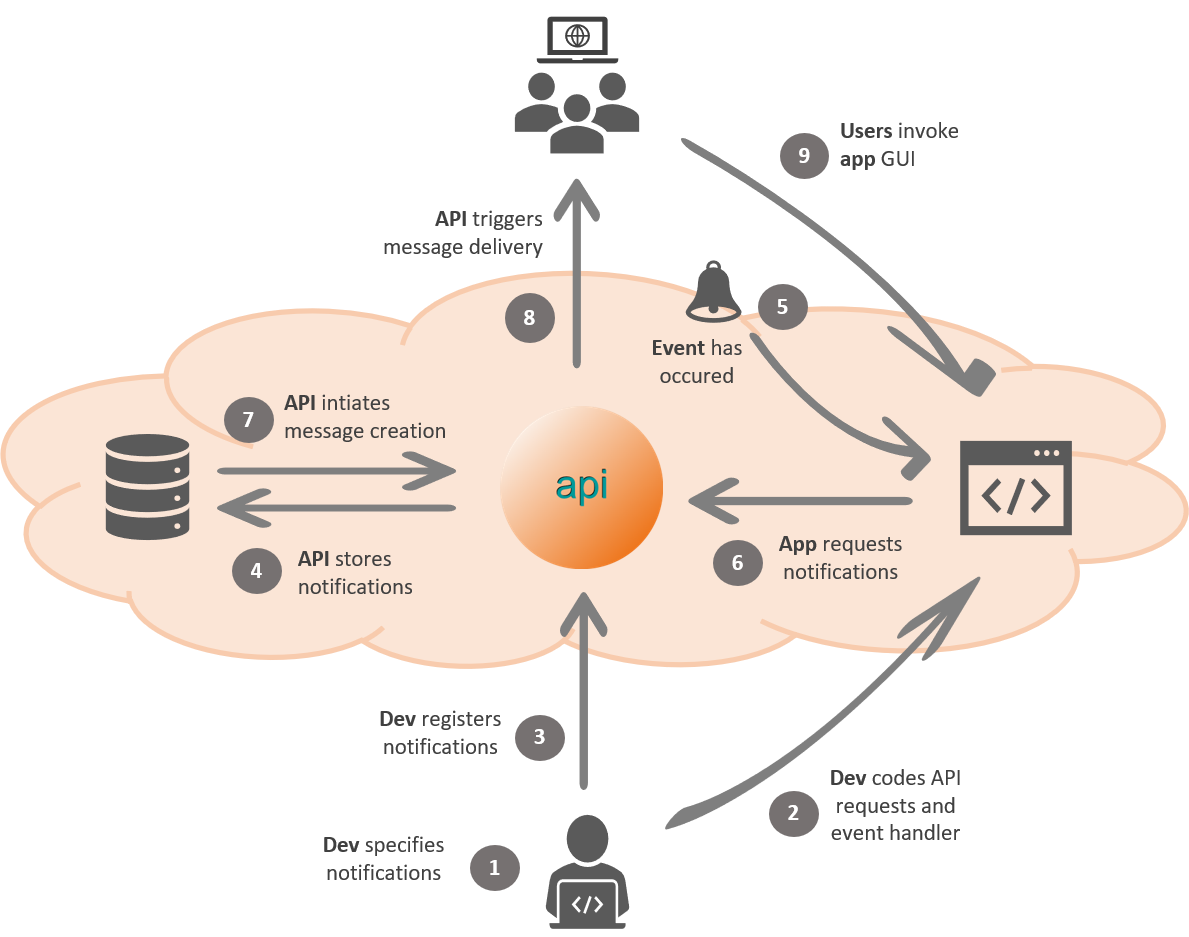
Image: teamplay User Notifications - API workflow example
For each of your applications, you can register several definitions for user notifications. To add up-to-date information to the content of your user notifications, you can use placeholders. These placeholders have to be resolved by your application when requesting the delivery of a user notification.
Options for invoking your cloud application (article)
Managing your applications (article)
Currently, the primary focus of this service is to support applications which are integrated in the teamplay digital health platform GUI and launched along with the teamplay core applications. For such applications, in the teamplay digital health platform GUI, users can choose their notification preferences. The GUI allows its users to explicitly subscribe and unsubscribe to notifications. Based on these preferences, teamplay User Notifications manages the delivery of user notifications. For each definition of a user notification, there are several parameters that have to be defined in advance such as license name, user permissions, communication channel or notification content.
There are multiple communication channels supported such as e-mail notifications and sending notifications to the teamplay Notification Center.
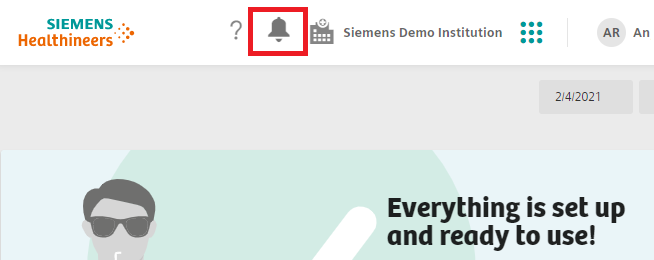
For applications that have been integrated into the teamplay portal, logged in users can open the teamplay Notification Center by clicking on the bell icon in the header of the teamplay portal.
In the teamplay Notification Center dialog, your users see a short note for all available notifications in a list. In case an application has provided further details, your users can click the "See more" button.
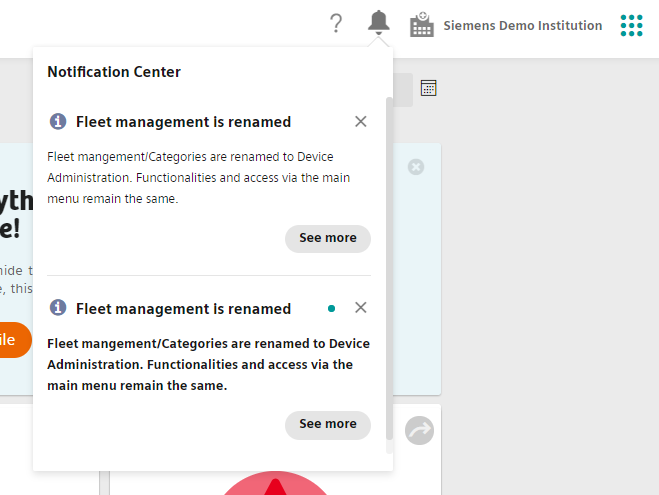
Typically, clicking the Show More button takes you to the application that triggered the notification. The navigated landing page contains more information about the event that caused the notification.
The currently available APIs offer and support the following functions:
Register and update definitions for user notifications.
Manage user notifications for multiple communication channels and customized events.
Further customize your notifications through various controllers such as controllers based on available licenses or user permissions.
For cloud applications that are invoked by its users via the App Launcher icon of the teamplay portal, additional functions apply:
Your application users can easily adapt their notification settings according to their individual needs in their settings of the teamplay Portal.
Additional insights in the use of your defined user notifications are supported for this use case.
For registering your partner application, follow the instructions on the Sign-up page
Prerequisites for utilizing the related APIs and services are:
Your application has been registered for the teamplay digital health platform.
You have an active subscription for the API product teamplay User Notifications.
You have an active subscription for the API product teamplay Base (alias teamplay Core APIs).
You have an approved registration for generating application tokens.
You have registered the application-specific user permissions and features (licenses) for the teamplay digital health platform.
teamplay User Notifications APIs (API products)
teamplay portal (login page)
Options for invoking your cloud application (article)
Environments (article)
To utilize the service, perform the following steps:
Specify notification IDs and definitions for user notifications in the schema that is described in the "teamplay User Notifications - Register and Send" API specification.
Implement the required code to identify relevant events within your application and also implement the https requests to call the "teamplay User Notifications - Register and Send" API after an event has occurred.
Before deploying your application to a dedicated environment, register the definition of your user notification by calling the "teamplay User Notifications - Register and Send" API.
Test the implementation for your registered notifications in the test environment in advance by provoking the defined events.
If you have integrated your application into the GUI of the teamplay portal and you also send notifications to the Notification Center, test the user experience for your application in the teamplay portal. To do so, login to the teamplay portal with your Siemens Healthineers ID. Check the default notification settings for your application and click the bell icon in the teamplay header to see if your notification appears as expected.
For teamplay core applications, monitor the use of your registered user notifications by calling the teamplay User Notifications - Register and Send API. By calling the API for a given notification ID, you will get a list with all institutions (tenant IDs) for which at least one user has activated the notification service.
The notification service uses various controllers to communicate with your users. Each controller takes on different tasks for processing user notifications. To register a new definition for user notifications, you must provide a key-value pair array in JSON format with the following details.
Remark: Values that cannot be left blank in the key-value array and that are required to register or update the definition of a user notification are marked with an asterisk (*).
Application identifier*
Provide the unique application identifier (appUID) that you received after you have registered your partner application for using the teamplay digital health platform applications and services.
Notification identifier*
You must create a notification identifier for each of your user notifications using the naming convention: <appUID>_<notification name>.
Version*
For registering or updating the definition of a user notification, a version number is required. For new definitions, start with the version number "1". For further updates, count up the version number (i+1).
User permissions
The administrator of a clinical institution is in charge to create meaningful roles to manage the users privileges. Based on the available pool of user permissions that are offered for the application that are running on the platform, the administrator then assigns the required user permissions to a role. Finally, the administrator assigns the required roles to the users, which gives them the appropriate permissions. The default permission name for the administrator role is "SETTINGS_USERMANAGEMENT".
Remark: User permissions that are required to control the delivery of your notifications, must be registered for the teamplay digital health platform in advance.
For each definition of a user notification, you can create a collection of required user permissions. teamplay User Notifications will only send notifications to users who have at least one of the listed user permissions. If the user permission field remains empty, you do not restrict the delivery of the notifications any further.
The following JSON syntax applies: [\<permission_name_1>\,\"<permission_name_2>\"]
Recipients*
If you like to send the messages also to people that are not registered users of the teamplay digital health platform, you can list all desired recipients by their IDs or email addresses in this field.
The following JSON syntax applies: [\"<email_address_1>\",\"<email_address_2>\"]"
The recipients settings allows you as a part of a marketing campaign, for example, to send messages to potential users who may be interested in trial versions of your application.
Furthermore, any explicit recipients that belong to a given institution (tenantID) can optionally be added to the request body as a key-value pair when calling the API to trigger the delivery of the user notification.
Features (licenses)
This setting allows you to send notifications only to users of the institutions who have the specified feature licenses for your application.
Remark: Features (licences) that are required to control the delivery of your notifications, must be registered for the teamplay digital health platform in advance.
For each definition of user notifications, you can create a collection of required features (licenses). teamplay User Notifications will only send notifications to users who have at least one of the listed feature (license). If the feature (license) field remains empty, you do not restrict the delivery of the notifications any further.
The following JSON syntax applies: [\"<feature_name_1>\",\"<feature_name_2>\"]
Communication channel*
teamplay User Notifications offers an interface for communicating with your users via the following communication channels:
via the teamplay Notification Center
In this controller field, during registering your notifications, you define the medium that is used to notify your users. Depending on your use cases, you can define a single or several communication channels.
Default user setting
For teamplay core applications, this field specifies whether the delivery of a notification is activated or deactivated by default for all users of an application. It is recommended to activate notifications by default.
In the teamplay digital health platform GUI, the users can manage their notification settings for all their teamplay core applications in one place. To unsubscribe from notifications that are activated by default, the user must explicitly switch off the corresponding notification settings.
Frequency*
If you only want to send notifications to your users when an event has occurred, you must define frequency value as follows:
"On occurrence"
If you want to send notifications to your users regularly, you must specify the frequency as follows:
"daily"
"weekly"
"monthly"
Description*
Add a meaningful title and a brief description to the definition of your user notifications. For definition that has been correctly registered with a given notification ID, the title and description will automatically be shown to your users in the notification settings if you have integrated your application into the teamplay digital health platform GUI.
If you do not provide the message title and description in all the required languages, the teamplay digital health platform GUI will switch to displaying the English texts. Therefore, when registering or updating definitions for user notifications, please provide the texts in all required languages - but at least in English.
Message content*
To automatically generate your user notifications, you need to provide a meaningful message text in advance. Make sure that the body of the message meets the needs of your users.
For emails, the message content consists of the following:
E-mail subject (mandatory)
E-mail body (mandatory).
For the Notification Center, provide the following details:
Title (mandatory)
Description (mandatory)
URL reference (optional).
If you provide a URL reference then a "See more" button is displayed next to the notification description to allow the user to browse for further details. For example, the provided URL could link to your application page that provides further details for your users.
The texts for the titles/subjects and descriptions/bodies are required in the default languages of the teamplay digital health platform. If a message text is not available in a required language, it is alternatively displayed in English. Therefore, the message texts are required at least in English.
In the message content, you can define variables as placeholders for your message contents. In this case, when requesting the delivery of a notification, you must provide the placeholders as key-value pairs. With the given values, teamplay User Notifications automatically replaces the placeholders at the time of delivery.
The following restrictions and limitations currently apply to teamplay User Notifications:
Reading and removing already submitted definitions and notification IDs
Currently, teamplay User Notifications does not support reading and removing of already registered notifications. Therefore, we recommend the following:
Only register notifications that are really required. Before registering new notification, consider re-using or extending the existing ones.
Maintain a list of your registered notification IDs and document the related notification settings. Keep this list up-to-date.
In urgent cases, you can contact the teamplay User Notifications team directly via a suitable Slack channel or by following the instructions on the Sign-up page.
Versioning of notifications
Currently, when updating the definition of a user notification, the content of the latest version is overwritten by the newest version. Therefore, for one notification ID, currently you can only store and use the latest submitted version.
Message contents
Currently, message contents can only be specified for email notifications.
User preferences
Currently, only for applications which are integrated in the teamplay digital health platform GUI and launched along with the teamplay core applications, users can change the default notification settings. In their notification settings, for example, users can deactivate selected notifications.
In the API gallery, see "teamplay User Notification" APIs and see also "teamplay Data Repository" APIs
Engage your users with targeted user notifications without distracting them from their tasks.
A relevant event for user notifications could be when DICOM images have been uploaded from a radiologist in order to request a treatment planning or to get a second opinion on short notice. The tracking of such an event has to be implemented in your client application itself, for example with the help of the teamplay Data Repository APIs.
If the event has occurred, your application must then call the teamplay User Notifications API to initiate an email notification. Thus, your users do not need to constantly invoke your applications to look for new tasks. Instead, you can inform them via email if a new task is waiting for them.
By using placeholders in the message text, you could additionally provide a temporary link to your application GUI at the moment when initiating the notification. In this scenario, your users would be able to directly invoke your application from the email and immediately start their work in the right context.

--------------- go to the top of this article --------------->>