
 Dev
DevThe teamplay digital health platform supports several options to invoke your cloud application front-end or back-end. Depending on the option you choose, the associated steps to integrate might differ.
Single-page application (glossary entry)
Regular web application (glossary entry)
Supported geographical regions (article)
General prerequisites:
Your front-end application runs in a web browser as a single-page application (SPA) or as a regular web application.
Your back-end application runs on a server in the cloud. Even for SPA´s, you support back-end connectivity to consume our APIs.
If users can interact with your front-end services, you have integrated Siemens Healthineers user authentication. In this case, you must register yourself as a user in the teamplay portal to log in with your Siemens Healthineers ID and password.
You are entitled to invoke and use your application for the supported regions and environments.
With respect to authentication and authorization, depending on your use case, user and application tokens must be validated. In a user context, additional user-related checks must be performed as part of the user token validation processes.
Hardware and software requirements (article)
Another option to invoke your application is entering your application URL in the web browser.
Additional prerequisites:
Depending on your use cases, additional hardware or software requirements might apply for your application.
To access your application, perform the following steps:

Types of access tokens (article)
Integrating user authentication (article)
Enter your application URL into the address bar of your web browser and click the Login button from your application GUI.
The Siemens Healthineers Login page for the users geographic region opens.
Enter your Siemens Healthineers ID and password on the Siemens Healthineers Login page that is available for your geographic region.
Your application home page opens and you can immediately start using your application according to your permissions.
After finalizing your tasks, click on the Log-off button.
Your browser session ends.
Sign-up page for partner management contact (article)
Sharp ServicePort (Siemens Healthineers-internal tool)
Hardware and software requirements (article)
Additional prerequisites:
You have integrated your application into the GUI of the teamplay portal. For integrating your application into the GUI of the teamplay portal, send us your request:
For external business partners, contact your partner management.
For Siemens Healthineers employees, raise a ticket via the Sharp ServicePort.
The same software requirements as for the teamplay portal apply.
teamplay portal Login (Siemens Healthineers)
teamplay portal (glossary entry)
teamplay Home (glossary entry)
To access your application, perform the following steps:
1. Enter the teamplay portal URL into the address bar of your web browser.
The Siemens Healthineers Login page for your geographic region opens.
2. Enter your Siemens Healthineers ID and password on the Siemens Healthineers Login page that is available for your geographic region.
The teamplay Home page (alias teamplay Dashboard) opens and you can immediately start using the teamplay portal.
Digital Marketplace (Siemens Healthineers)
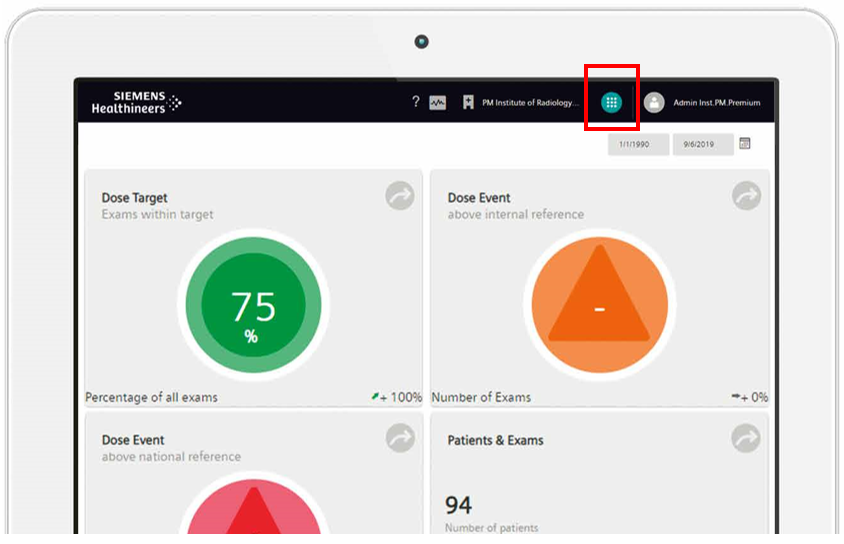
3. At the top of the teamplay Home page, click the petrol-colored App Launcher icon.
The teamplay main menu opens, which connects you to the listed applications. If your affiliated institution has subscribed to your application and depending on your permissions, you can see your application listed in the teamplay main menu.
4. From the teamplay main menu, click on your application icon.
Your application home page opens in a new tab card of the browser and you can immediately start using your application according to your permissions.
5. After finalizing your tasks, click on the Log-off button.
Your browser session ends.
teamplay Images APIs (article)
Hardware and software requirements (article)
Additional prerequisites:
The same software requirements apply as for consuming teamplay Images APIs.
To access your application, perform the following steps:
1. Enter the teamplay portal URL into the address bar of your web browser.
The Siemens Healthineers Login page for your geographic region opens.
2. Enter your Siemens Healthineers ID and password on the Siemens Healthineers Login page.
The teamplay Home page (alias teamplay Dashboard) opens and you can immediately start using the teamplay portal according to your permissions.
3. At the top of the teamplay Home page, click the petrol-colored App Launcher icon.
The teamplay main menu opens, which connects you to the listed applications. If your affiliated institution has subscribed to teamplay Images and depending on your permissions, you can see teamplay Images listed in the teamplay main menu.
4. From the teamplay main menu, click on the teamplay Images icon.
teamplay Images opens in a new tab card of your browser and you can immediately start using teamplay Images according to your permissions.
5. From the teamplay Images tab card, open a new DICOM study.
Sign-up page for partner management contact (article)
teamplay Images (Siemens Healthineers)
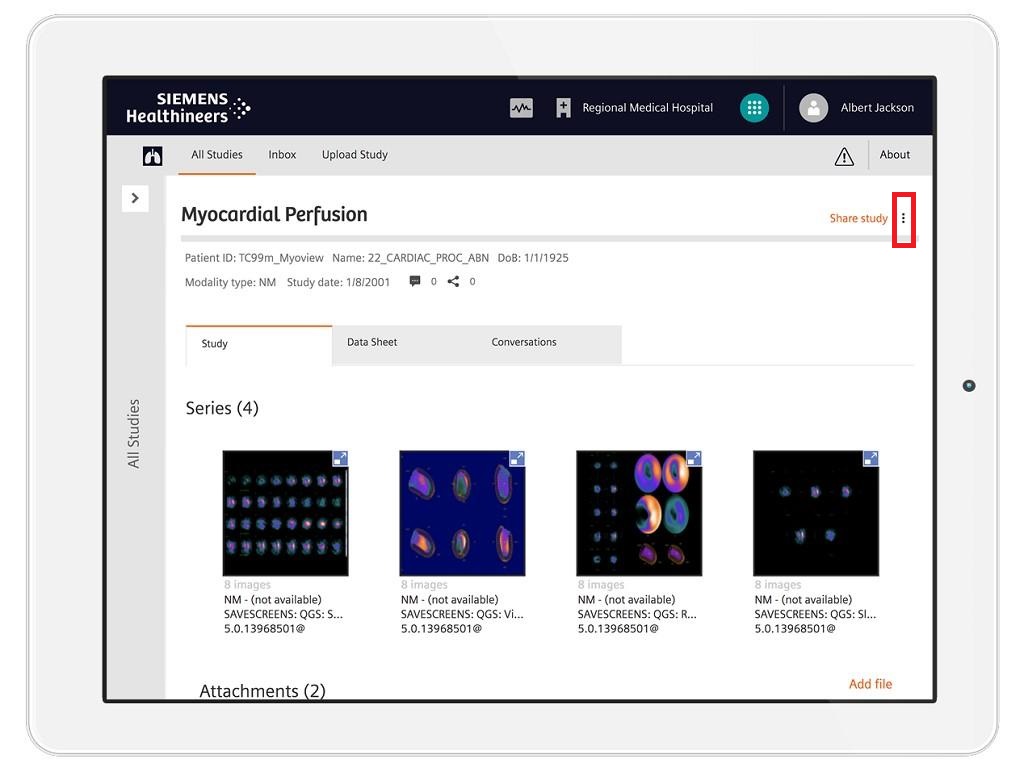
6. Click the context menu icon symbolized by three dots and select in the sub menu the entry Open in your application.
A new browser tab card opens, and depending on your application behavior, the DICOM study should be displayed for further processing in your application GUI.
7. After finalizing your tasks, click on the Log-off button.
Your browser session ends.