
 Dev
DevDocs & guidelines > Getting started
The API detail pages for each API version contain a list of associated API operations along with their documentation. You can view the semantics of the API, which are available on developer portal and use the same for calling them. This includes for instance the special notation used in a URL for query parameters and resource identifiers.
The "API version" pull-down menu at the top of the API detail page appears when the associated API is versioned with at least one version.
For APIs with more than one version, this pull-down menu allows you to easily switch to the API details view of another version of the API without the need to navigate back to the API gallery.
The "API definition" pull-down menu at the top of the API detail page allows you to download the API definition for the associated API and operations.
The definition file is available in various formats such as JSON. The API definition includes all pure API documentation, which is visualized on the API detail pages using templates, web widgets and style sheets. You can access the downloaded file in your "download" folder on your local drive.
You can access the "API change history and announcement" page via the "changelog" link at the top of the API details page.
For most of the APIs, there aren´t currently any logs entries available. In future, it is planned to add some information here, for example about deprecation dates in case an API version has been decided to not be supported anymore after a certain point of time. In addition to the deprecation date, the notes might also include references to successor API versions or additional information about other alternatives.
News on API changes and deployments (article)
For frequent and timely notifications about news on API changes and deployment activities, you can follow the associated MS Teams channel.
For news on deprecation announcements for your subscribed API products, you will receive automated email notifications to your developer email account.
The list of operations on the left of the API detail page allows you to easily switch between the API details for the offered API operations.
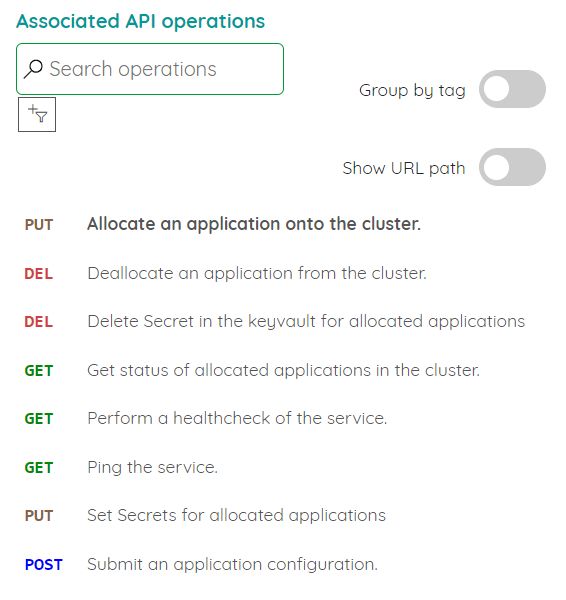
Discovery options in the left navigation bar for Associated API operations:
Search
Entering a string in the Search field filters the list of API operations. Only the names (or URL paths) of API operations containing the entered string are displayed
Filter
Clicking the Filter icon and selecting a listed tag name filters the list of API operations. Only API operations that are assigned to the selected tag name are displayed.
Group by Tag
Activating the Group by Tag checkbox, groups the listed API operations by their assigned tags. If an API operation is assigned to several tags, the API operation is listed for several groups.
Show URL path
Activating the Show URL path checkbox, sorts and displays the listed API operations by their URL path.
The operation details section provides the documentation for the selected API operation.
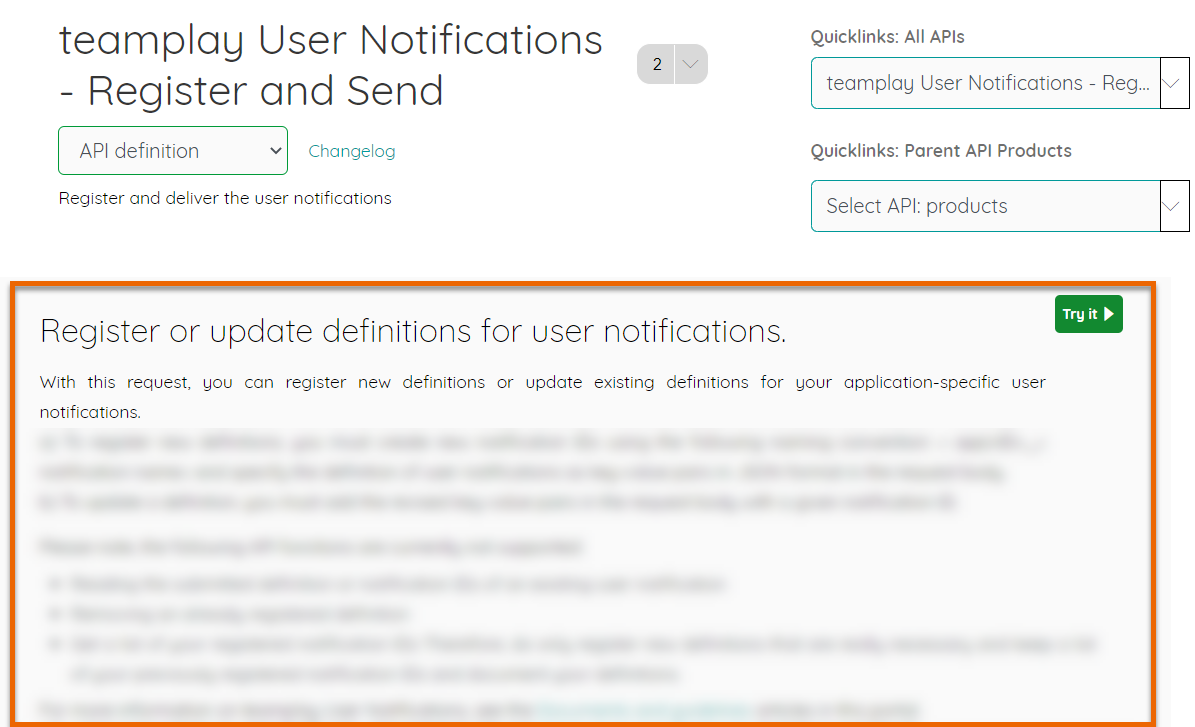
For example, the operation details section provides you the details on the required authorization header.
Types of teamplay tokens (article)
To authorize your API requests, you must always pass an access token in the authorization header.
The supported token types are listed on the API details page in the Request Headers section for each API operation.
About the product details (article)
The API details page also offers a Try it function that allows you to test individual API operations. By specifying request parameters and headers, the Try it function sends the request to the API endpoint in the cloud and displays the corresponding response in the portal's Try it panel.
The Try it function provides you a convenient way to debug the integration of APIs and their operations in advance and ensures that your specified request is working correct for the associated teamplay cloud environment.
To open the Try it panel, click the Try it button at the top of the API operation details. Enter all the required information in the form fields. To submit your API request, scroll down and click the Send button. To close the Try it panel, scroll up and click the x symbol on the upper right corner.
The Try it panel is divided into the following sections:
Try it panel - upper part
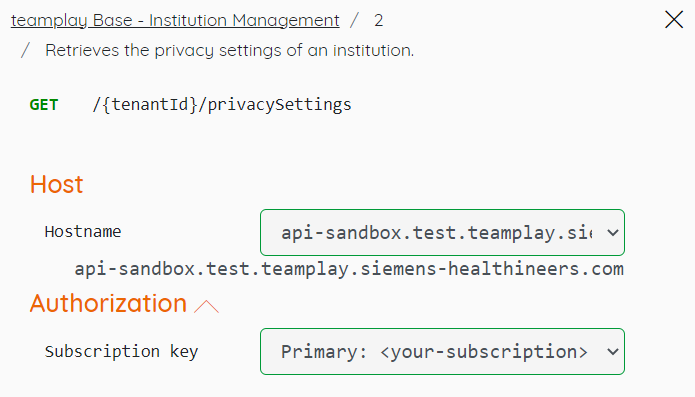
The try it panel upper part includes the following elements:
API name
API version
API operation name
Method
Path for the method
Hostname which calls the URL
Authorization with subscription key which must be selected
Select your subscription key for the parent API product in the authorization section. A subscription key can only be selected if a valid subscription to the parent API product exists. If multiple subscriptions for the parent API product exist, select the specific key for which the test should be run. You can also choose between the primary and secondary subscription key. The available subscription keys can be selected from the drop-down-menu. If no subscription key is visible, then the field will remain empty.
Parameters
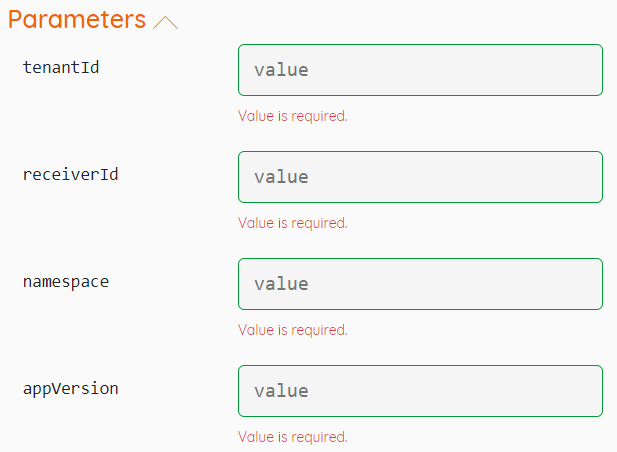
For some APIs, additional parameters, optional or mandatory, might be required. Query parameters follow after the question mark of the request URL. A combination of query parameters is separated by the "&" symbol. Optional query parameters are enclosed in square brackets.
Headers
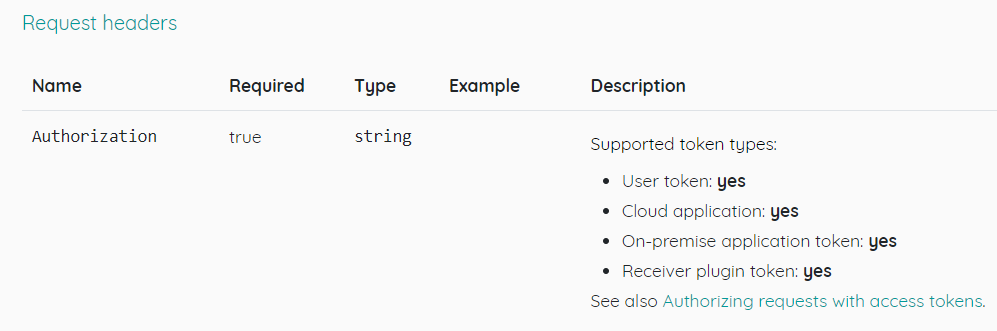
If additional parameters are expected with your http requests is indicated in the panel itself. For further options, you can check the descriptions in the API details.
Body
For samples on what to enter to the body, see the related section on the related API detail page.
HTTP request
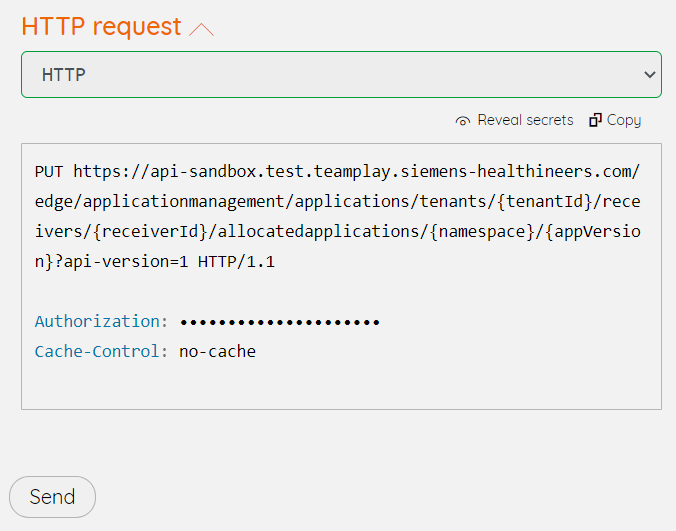
For samples on how to implement the API request in you desired scripting or coding languages, refer to the related tab cards.
According to our operations conventions for APIs, unsuccessful operations return a structured statement that indicates the problem details. Available response statements are also listed on the API detail page.

--------------- go to the top of this article --------------->>