
 Dev
DevDocs & guidelines > Getting started
In this article, we briefly explain how to subscribe to API products and how to manage existing API subscriptions.
Watch this demo to learn how to subscribe to API products.
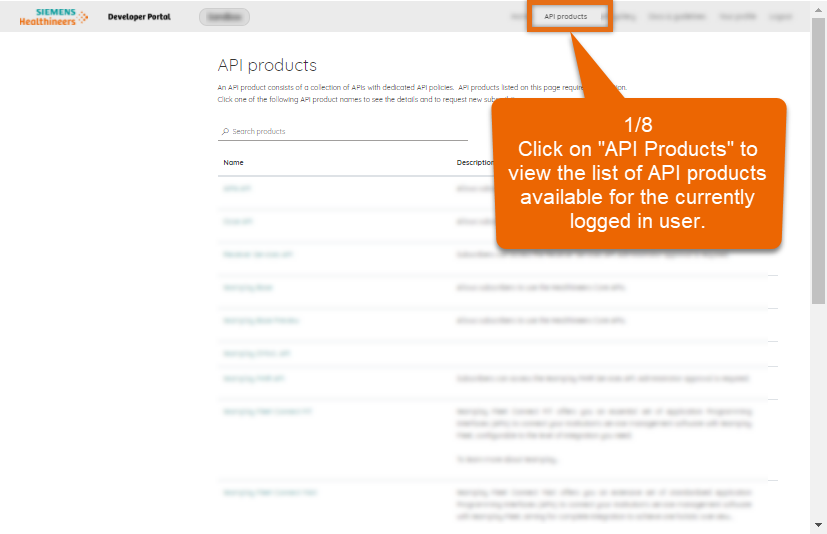
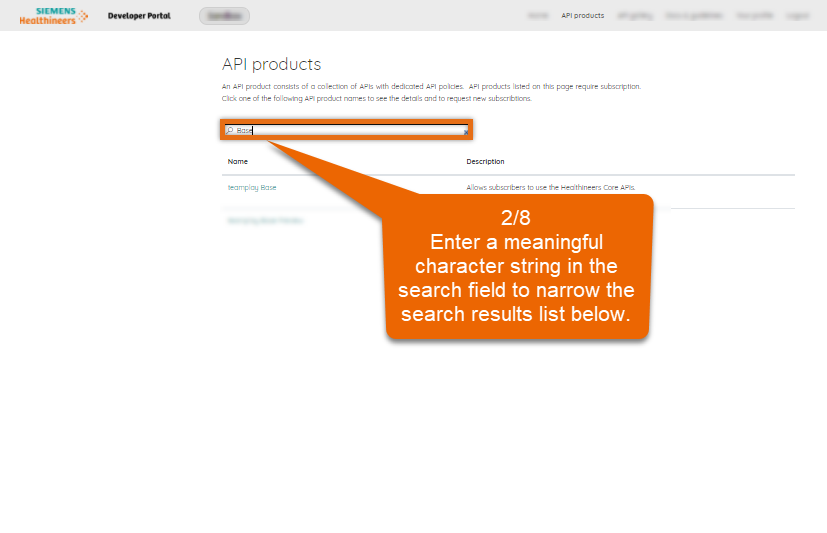
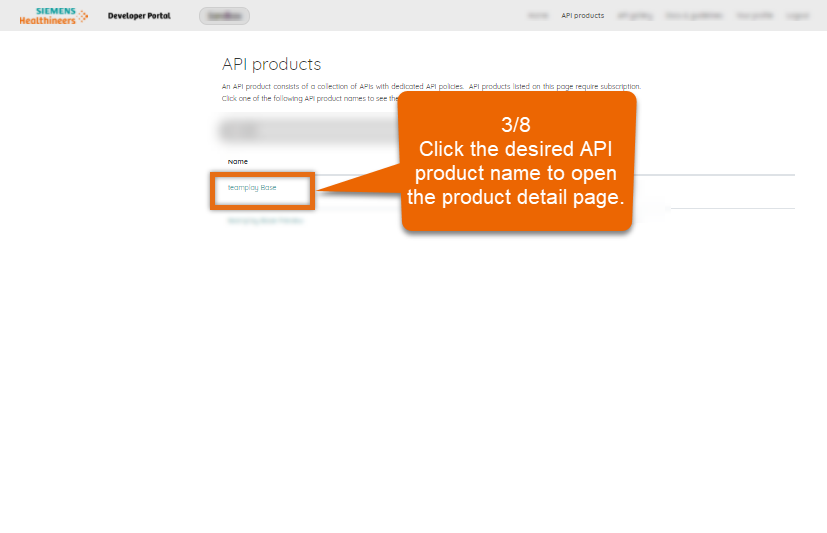
About the API products list (article)
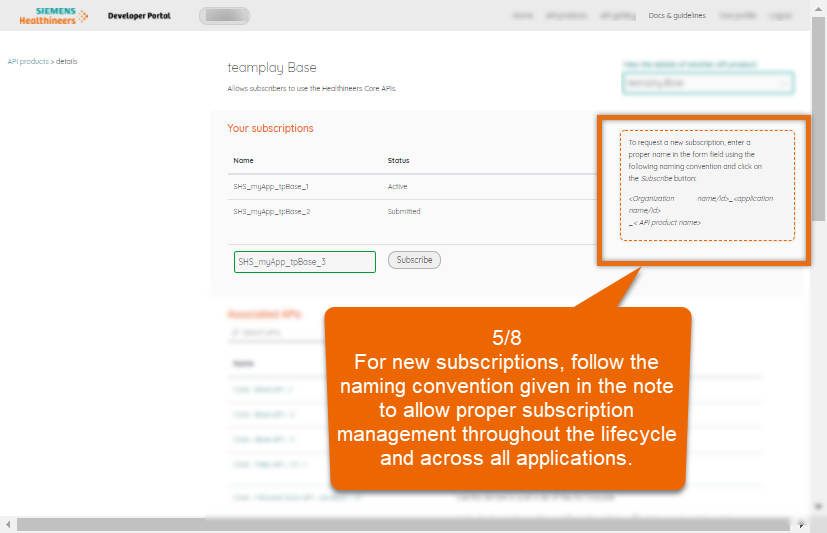
About the API product details (article)


Your profile page (in this portal)
Further portal information (article)
Subscriptions are managed based on the user who has currently signed-in to the portal.
Thus, we recommend to subscribe to API products with your teamplay developer account to benefit the following:
Avoid individual subscriptions that can be only accessed by one individual of your organization.
Share your teamplay developer account and the associated subscription keys within your development team to support task rotation.
Limit the amount of subscriptions to a minimum in order to reduce internal and external administration efforts.
Environments page (article)
Subscriptions are managed based on the dedicated regional environment, you are currently signed in.
You can easily identify for which environment you are currently signed in to the portal by checking the name of the environment button in the left part of the portal header. By clicking the environment button in the header, you open the Environments page.
Subscriptions always happen on API product level. There might be cases where you know the name of a desired API version, but you do not know the name of the associated parent API product.
To identify the parent API product that bundles a dedicated API version, open the API details page for a dedicated API version from the API gallery in the Developer Portal. To learn how to identify a parent API product, which is bundling the currently displayed API version on the API details page, refer to the article "About the API details" in this Getting Started section.
OAuth (glossary entry)
teamplay APIs must only be called from server-side applications or services. Please ensure that the subscription key is never send to the client-side such as the client web browser. This shall ensure that a hacker cannot easily see the subscription key in the debugger mode in order to call teamplay APIs on your behalf. The same applies to all other credentials that you received during the registration processes such as your teamplay developer account credentials and further secrets.
teamplay APIs must only be called from server-side applications or services.
Subscription keys must not be passed through your front-end application running in a browser window! Thus, especially for the productive environments, you need to implement and configure independent back-ends for each regional environment. This approach may mean extra effort for you at first, but it will help to ensure compliance of your application with regional laws and regulations in regard to data flows and storage locations.
Outlook: The preferred future approach will be to manage the access control for APIs through claims-based authentication such as OAuth and OpenID Connect.
Your Profile page (in this portal)
About Your profile page (article)
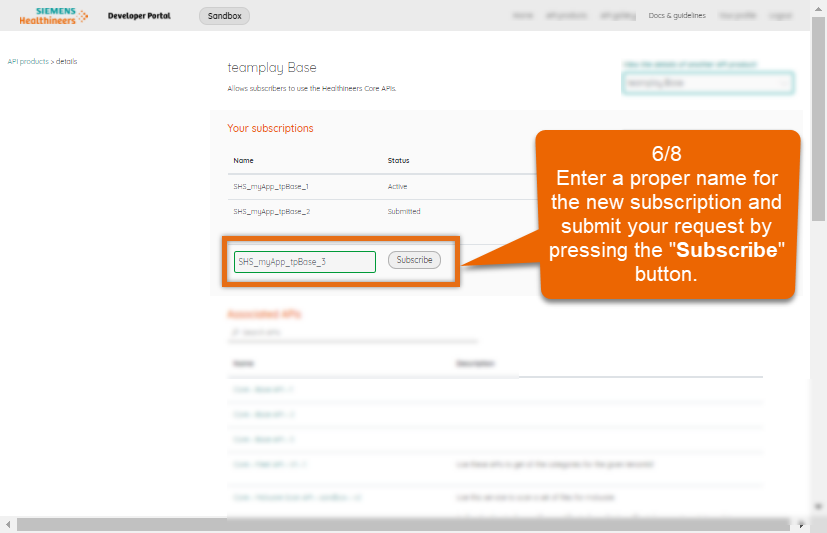
In order to call a teamplay API, for each deployment-instance-related portal, a subscription key for the related API product is required. To get an subscription key, sign-in to the related portal with your teamplay developer account, open the API products page and open the API products details page for your desired API product. If you haven´t subscribed to the desired API product yet, submit a request with the available form on the API products details page. This generates an API product subscription key for the signed-in developer account and the related deployment instance.
The subscription key is a secret which is not automatically expiring!
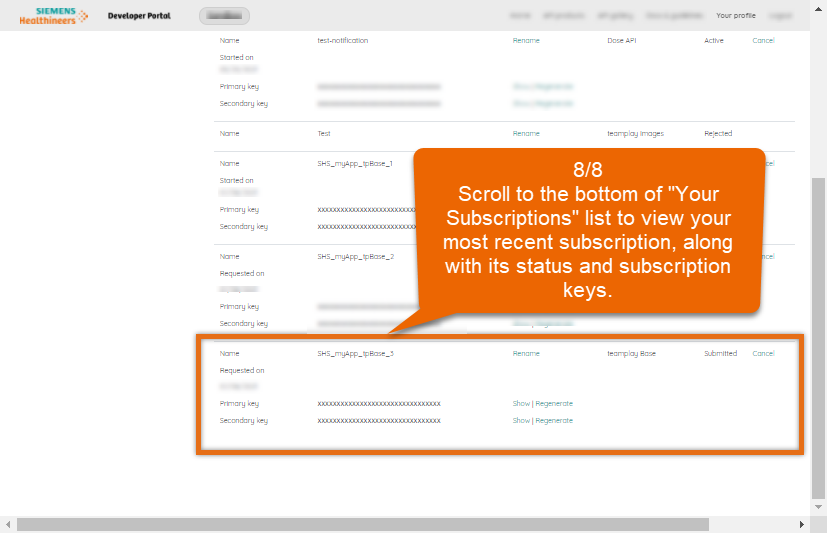
We recommend to frequently update your subscription keys via Your profile page.
Remove active subscriptions as soon as they are not required anymore.
Active subscriptions can be removed via Your profile page.
On the API Product details page, you can only see a list of all subscriptions of the selected API product.
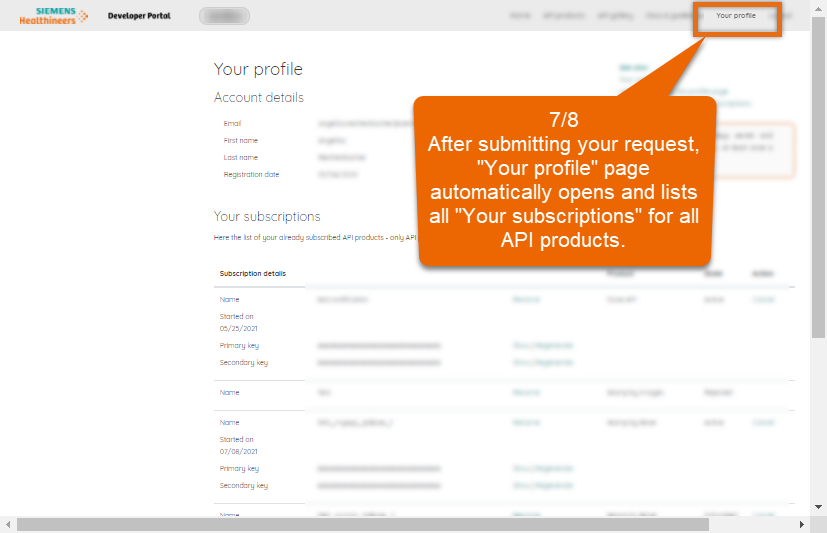
To view a list with all your subscription requests including their status, click on Your profile menu entry from the upper right main menu.
For learning more about the Your profile page, refer to the related article in this Getting Started section.

--------------- go to the top of this article --------------->>